> ## Documentation Index
> Fetch the complete documentation index at: https://docs.configu.com/llms.txt
> Use this file to discover all available pages before exploring further.
# Configs Editor
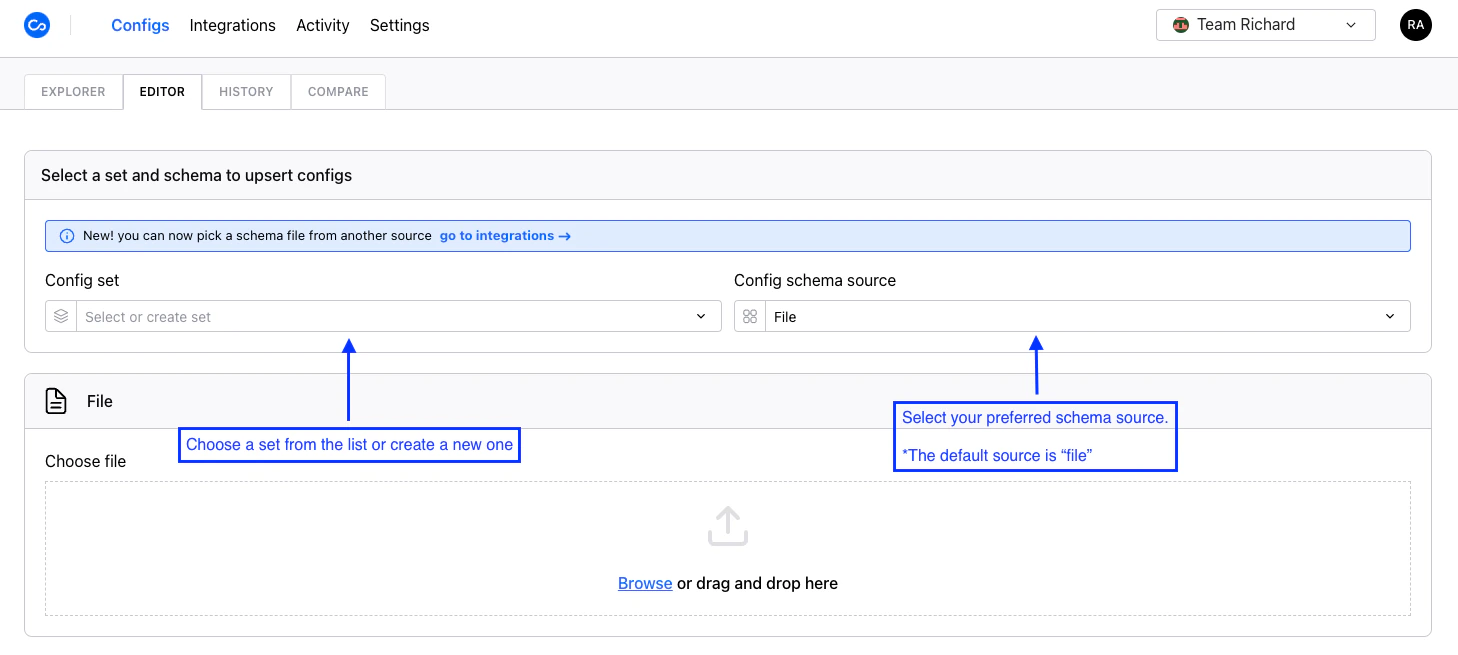
The Configs Editor is where you can upsert (create/edit/delete) configs to an existing set or create a new one.
As in the other interfaces (CLI & SDKs), you need to insert the set name (choose an existing one or create a new one) and provide a schema file `.cfgu.json` using any of the methods allowed by the schema source.
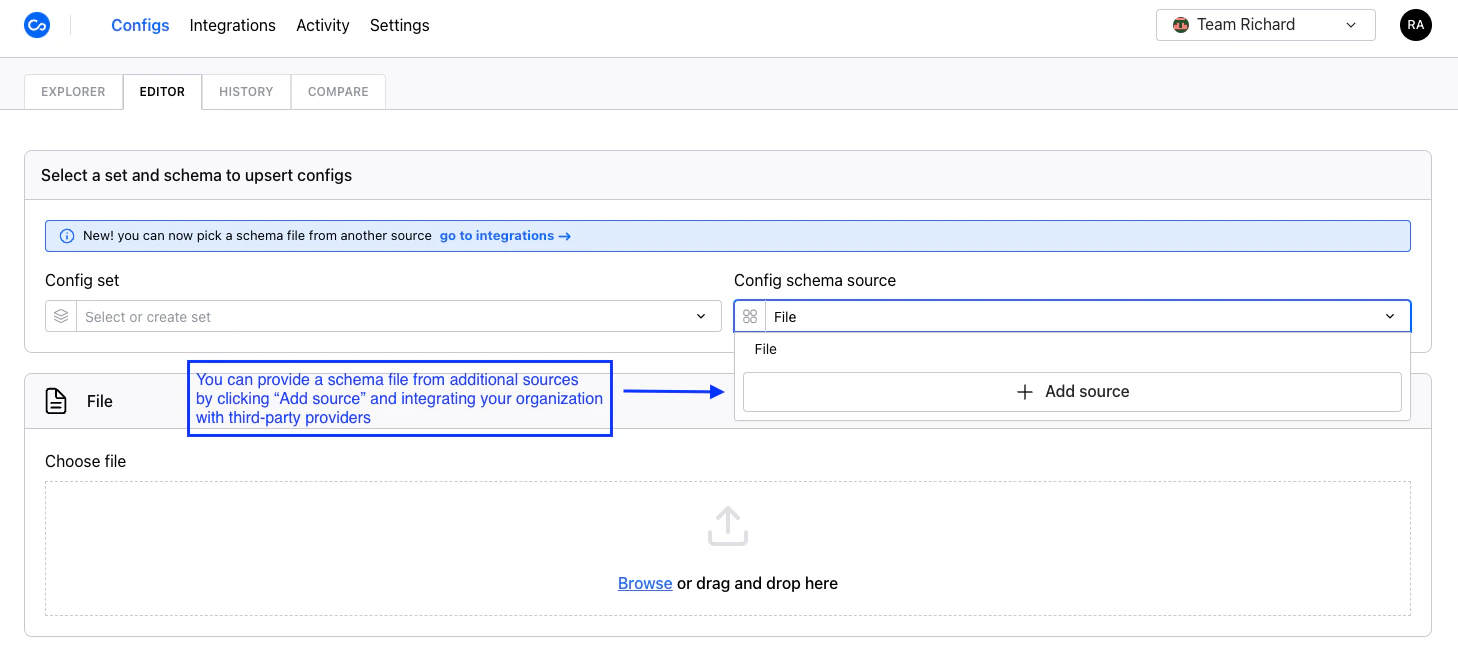
 Open the selector to view [additional schema options](#available-schema-sources). Once you select a schema, the option you used will be selected the next time you return to the config editor.
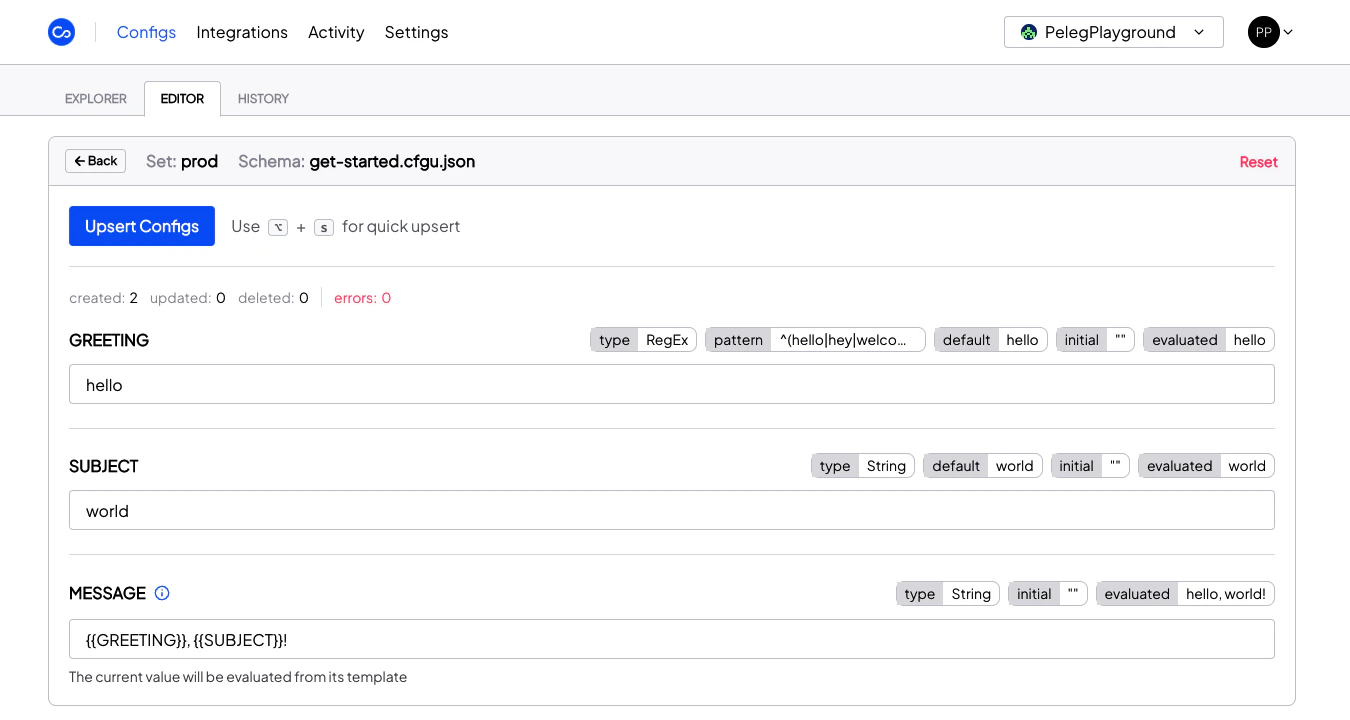
 Once a set and a schema have been selected, you will be automatically transitioned to the upsert form where you may edit configs.
 ## Available Schema Sources
### File
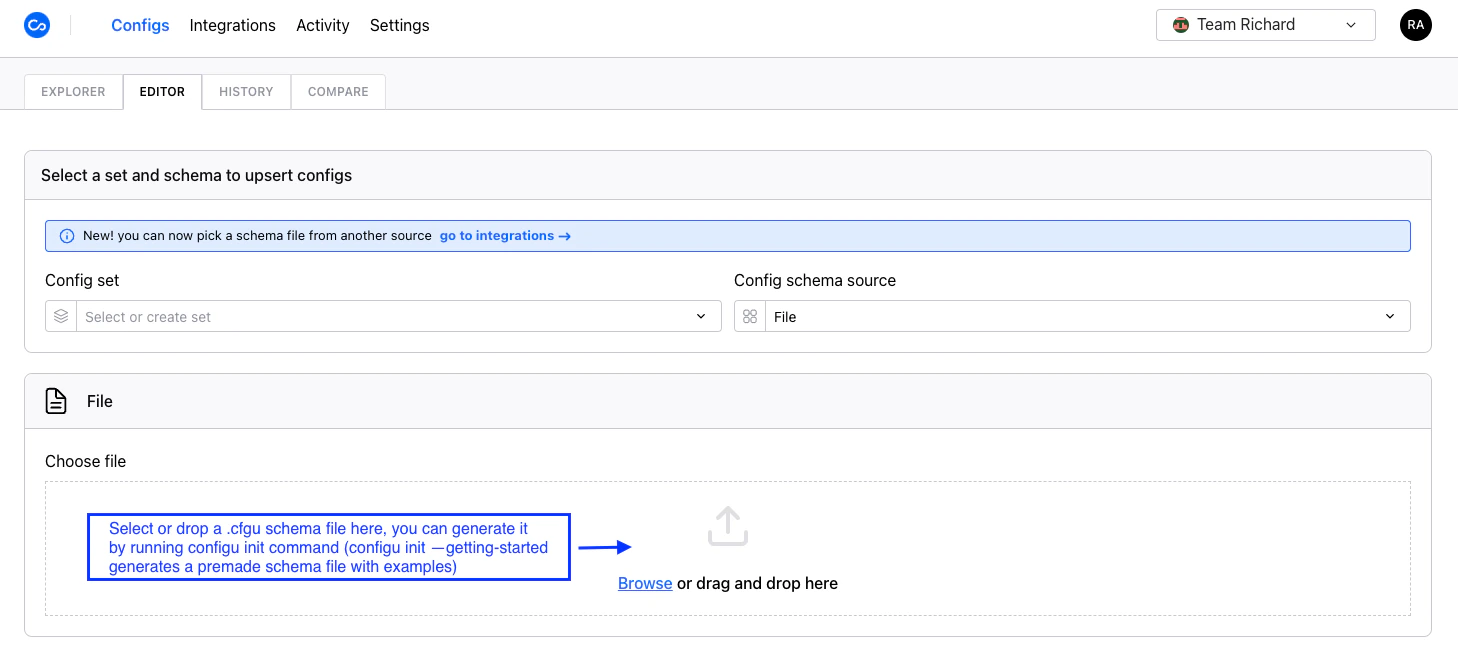
You can use any schema file you have on your local machine by dragging and dropping or through the file browser.
## Available Schema Sources
### File
You can use any schema file you have on your local machine by dragging and dropping or through the file browser.
 ### GitHub
Once you've connected your [GitHub App installation](/integrations/store/configu/integrations#github) to your organization, you may select GitHub as a schema source.
### GitHub
Once you've connected your [GitHub App installation](/integrations/store/configu/integrations#github) to your organization, you may select GitHub as a schema source.
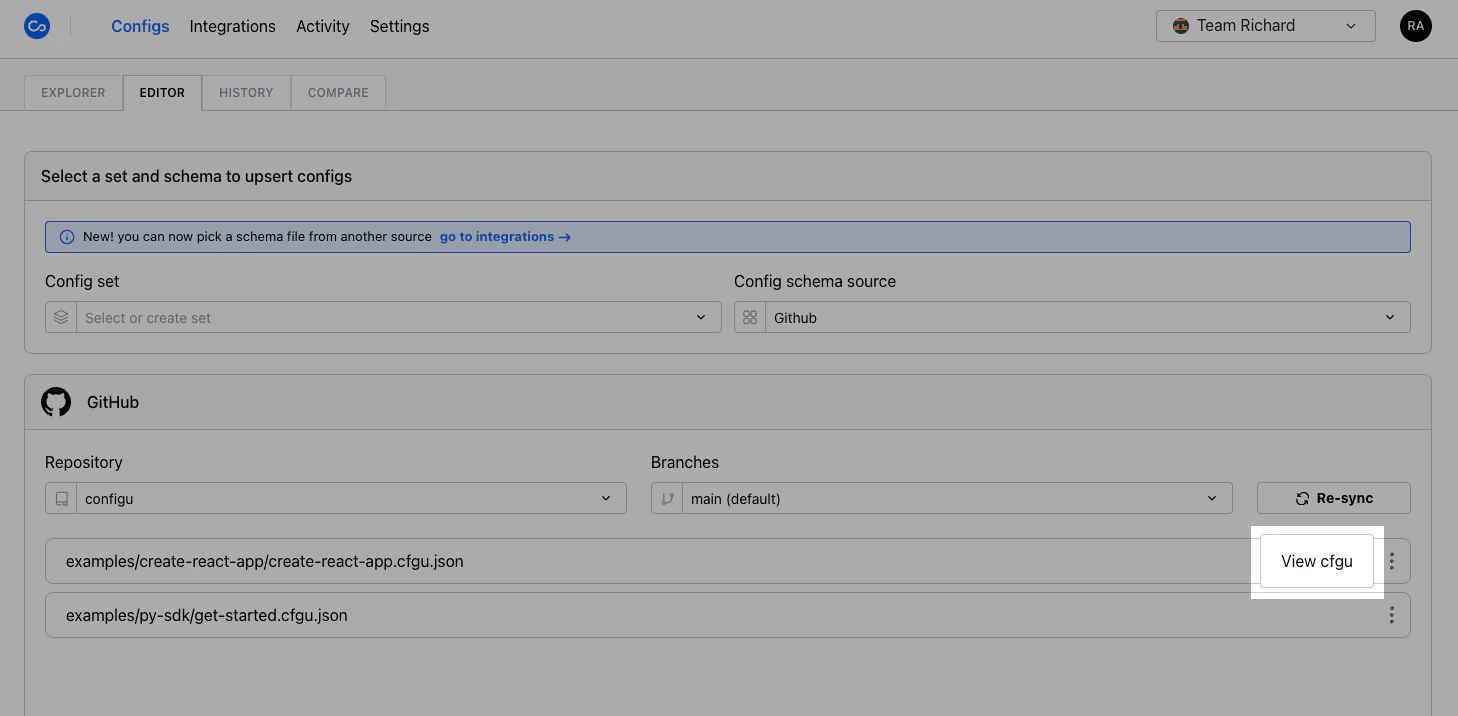
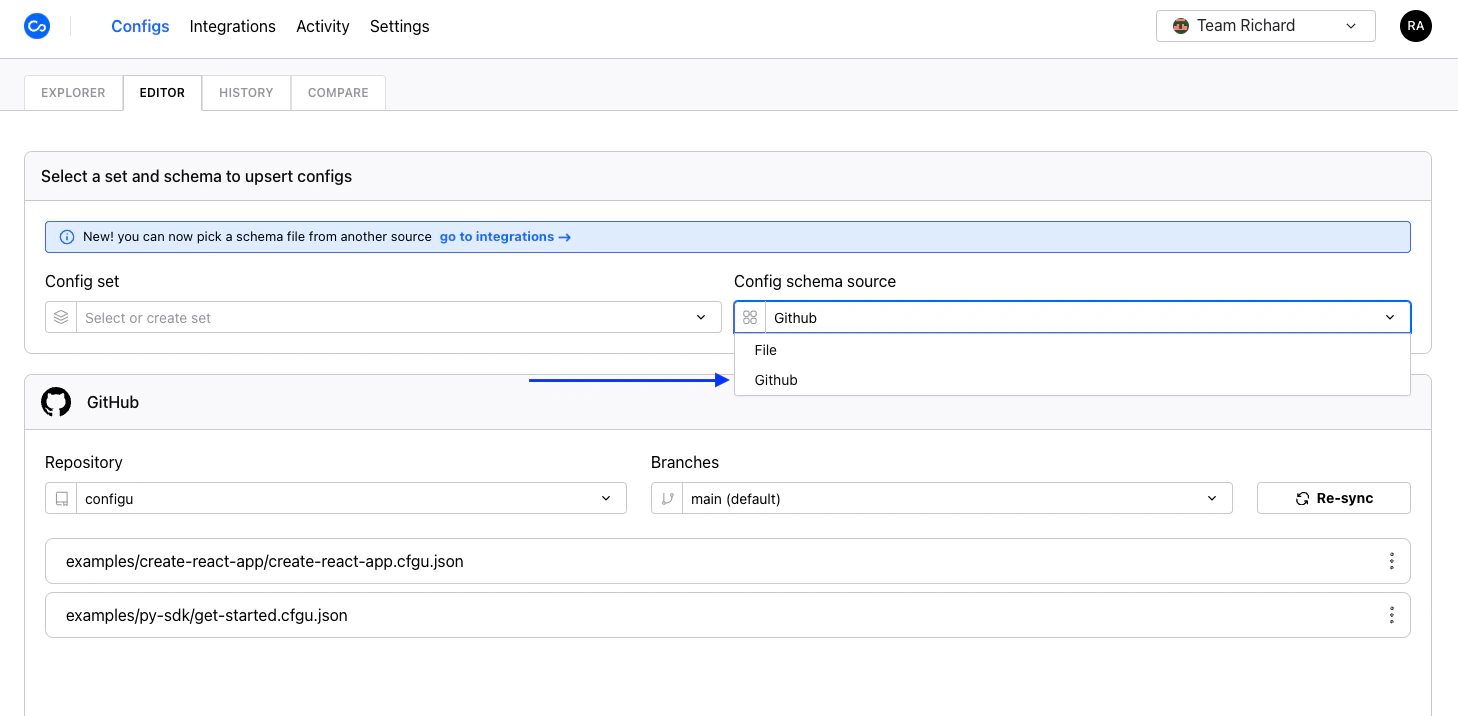 Browse available repositories, branches, and schemas to find the schema you want to use. You may view the content of the schema file before selection by using the "View cfgu" action.
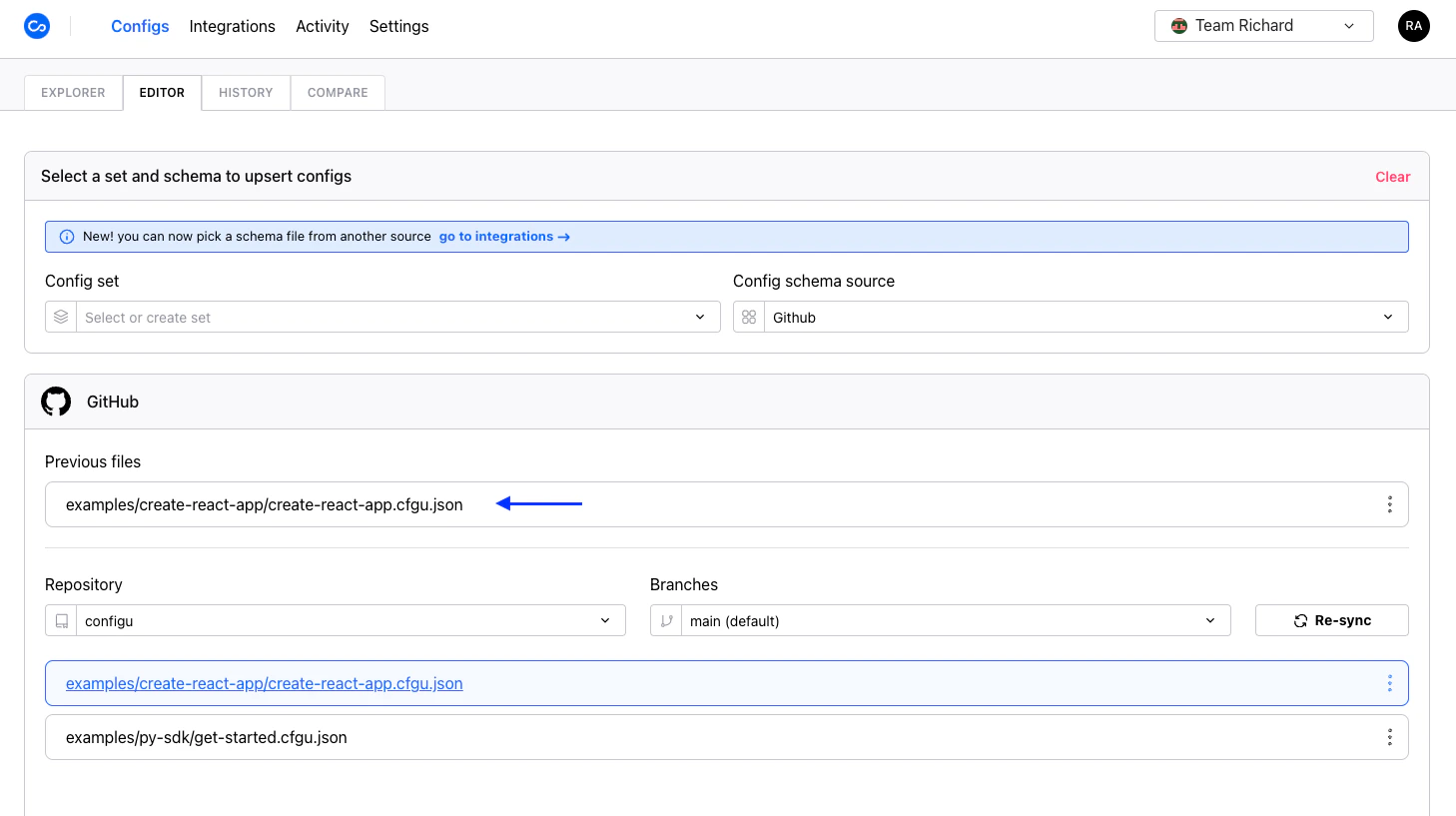
 Once you find the schema you want to use, click on the row and the content of the cfgu file will be retrieved from GitHub. Recently selected schema files are saved in a "previous files" list available for your convenience. You can select schema files directly from the "previous files" list without selecting a repository.
 You will only see repositories that were selected during the GitHub App installation.
By default, the first repository that has a schema file in the default branch is chosen.
By default, when selecting a new repository, the default branch is automatically selected.
If the repositories, branches, and schema files are out of date. Click the "Re-sync" button to fetch the latest data
from GitHub.
If the GitHub app is suspended, the GitHub schema source option will be disabled.
If a selected GitHub schema file is invalid, the row will be disabled. You may update the file in GitHub and click
"Re-sync" to update the list.
### GitLab
Once you've connected your [GitLab App installation](/integrations/store/configu/integrations#gitlab) to your organization, you may select GitLab as a schema source.
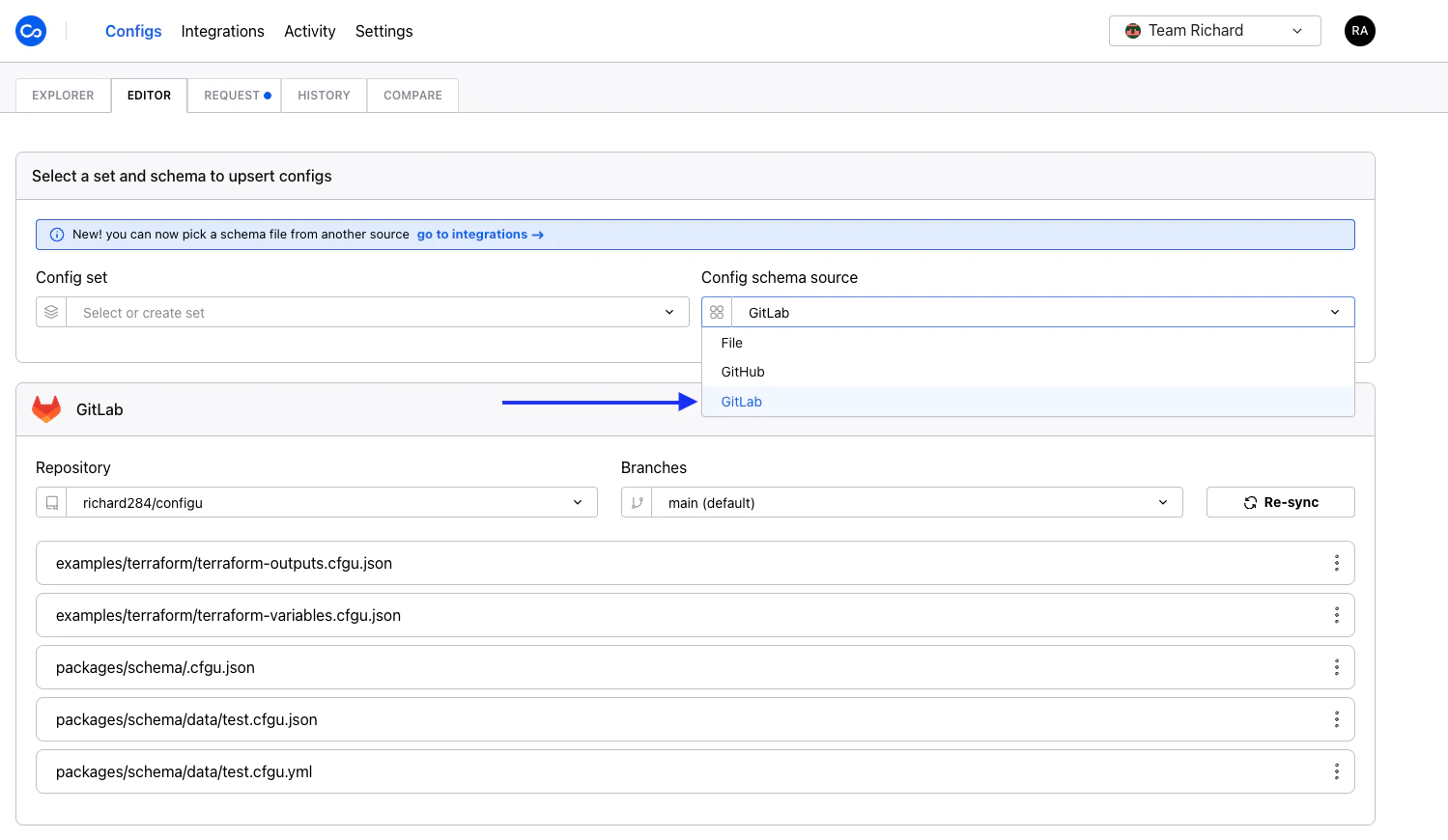 Browse available repositories, branches, and schemas to find the schema you want to use similar to the [GitHub schema source](#github).