> ## Documentation Index
> Fetch the complete documentation index at: https://docs.configu.com/llms.txt
> Use this file to discover all available pages before exploring further.
# Configs Explorer (Dashboard)
Let's understand how Configu structures and visualizes configurations.
The Configs pages are where you can view and manage your configurations.
The Config Explorer is a dashboard page that shows all the configuration data with a simple visualization.
You organize and view the data in **Sets** (e.g., environments, regions, branches, customers). You can view the details of a configuration in the **Configs** view.
You can also search and filter the data by:
* Set - set name or part of it
* Key - key name or part of it
 ## Graph View
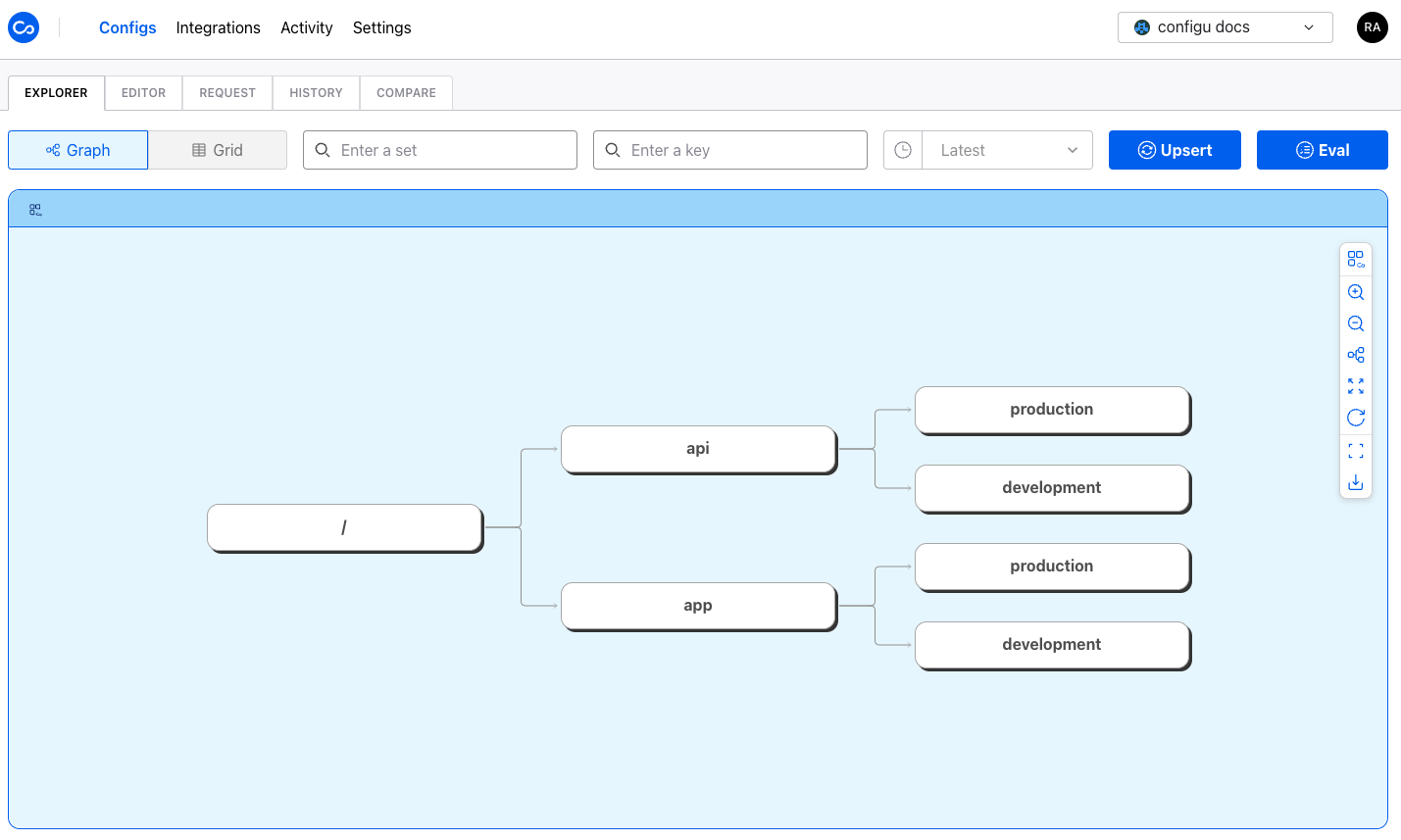
The Graph view is the default view, and it shows all your [ConfigSets](/introduction/concepts#configset) on a graph, illustrating the relationships between them.
## Graph View
The Graph view is the default view, and it shows all your [ConfigSets](/introduction/concepts#configset) on a graph, illustrating the relationships between them.
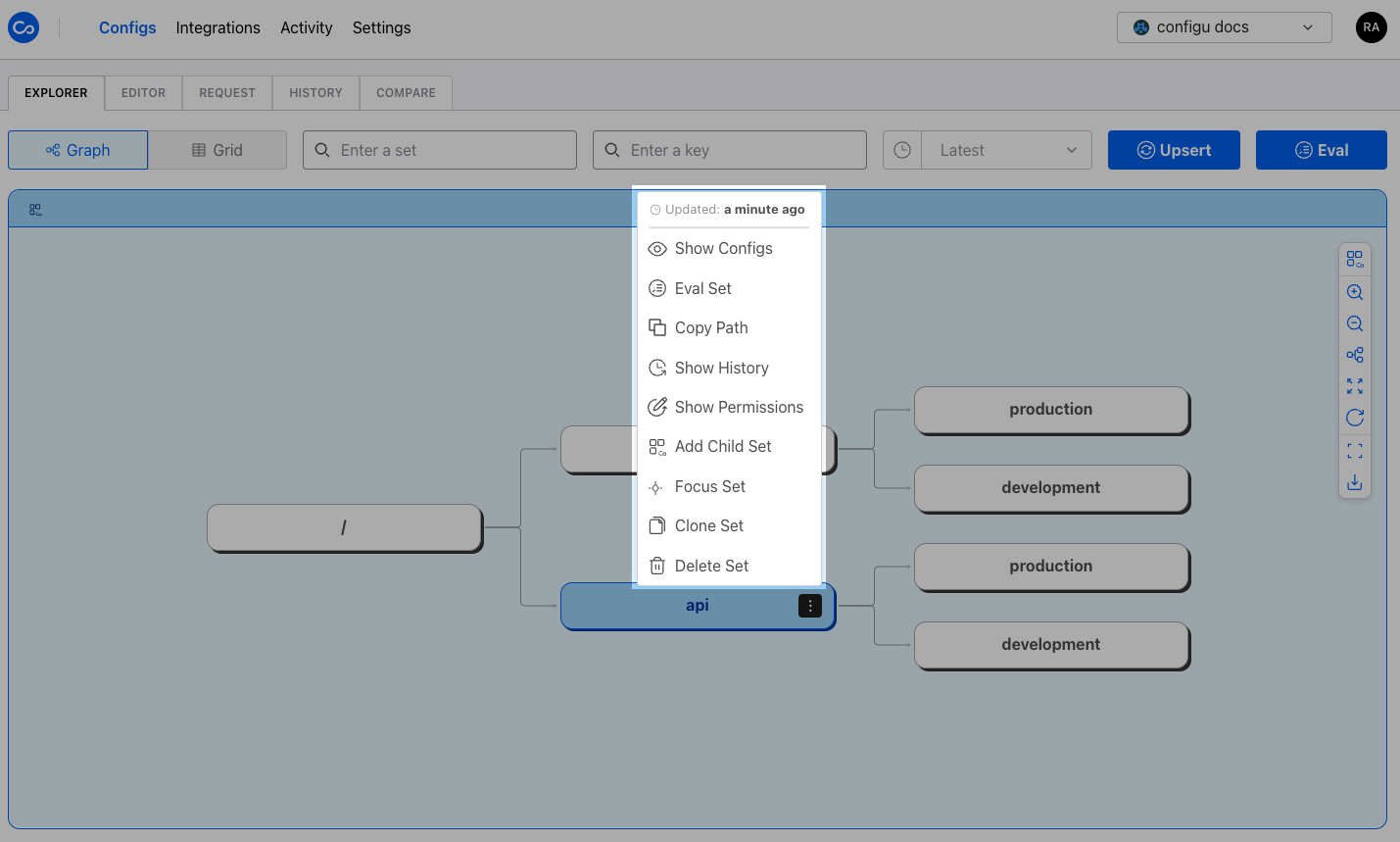
 You can right-click any set to open the context menu and perform actions like viewing the configs or configs history, cloning the set, adding a child set, evaluating it, deleting it, focus it, and more.
 ### Focus Set in Graph View
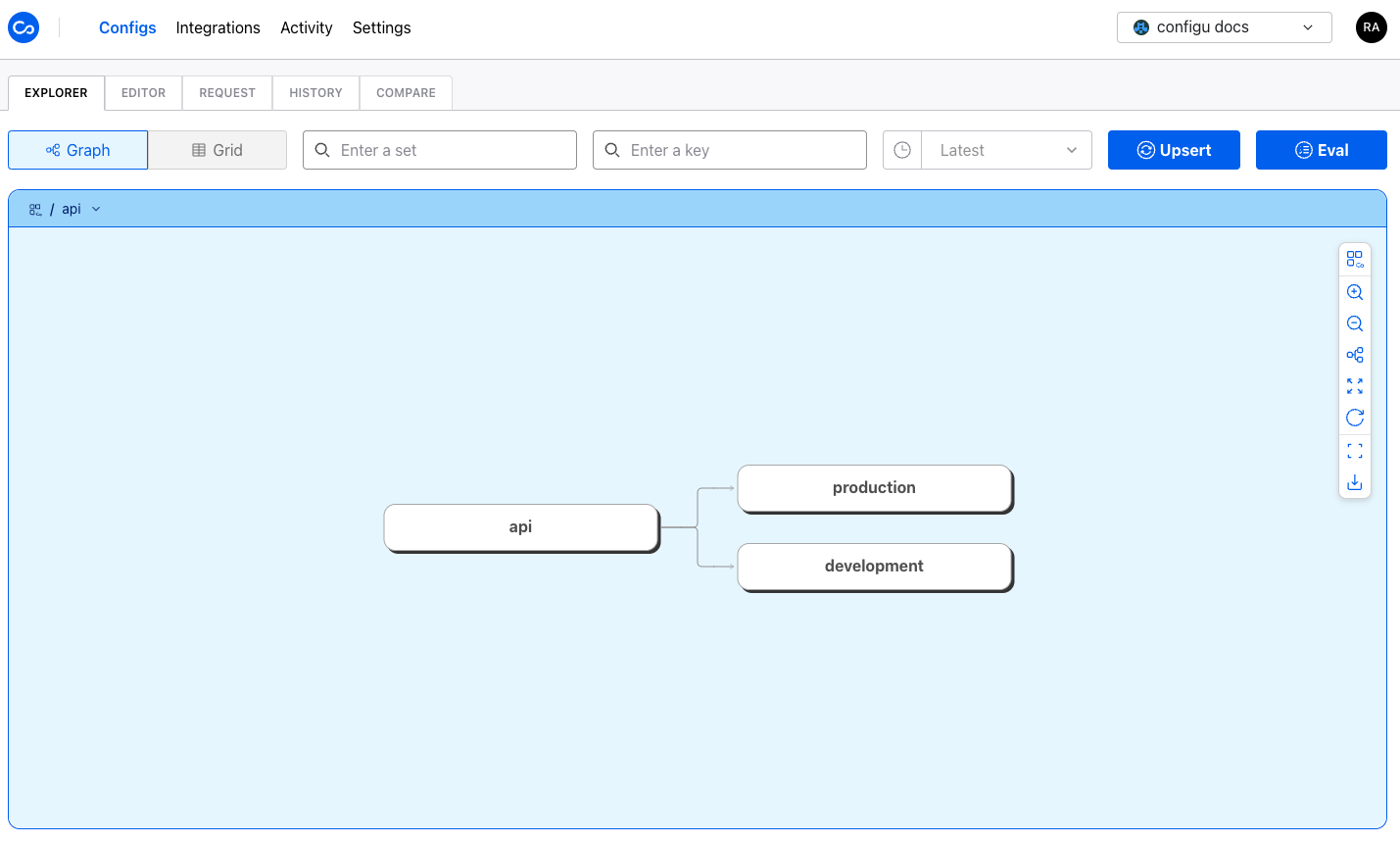
You can focus on a set by right-clicking on it and selecting the `Focus Set` option.
This action will center the graph starting from the selected set, making it easier to view the set's children.
### Focus Set in Graph View
You can focus on a set by right-clicking on it and selecting the `Focus Set` option.
This action will center the graph starting from the selected set, making it easier to view the set's children.
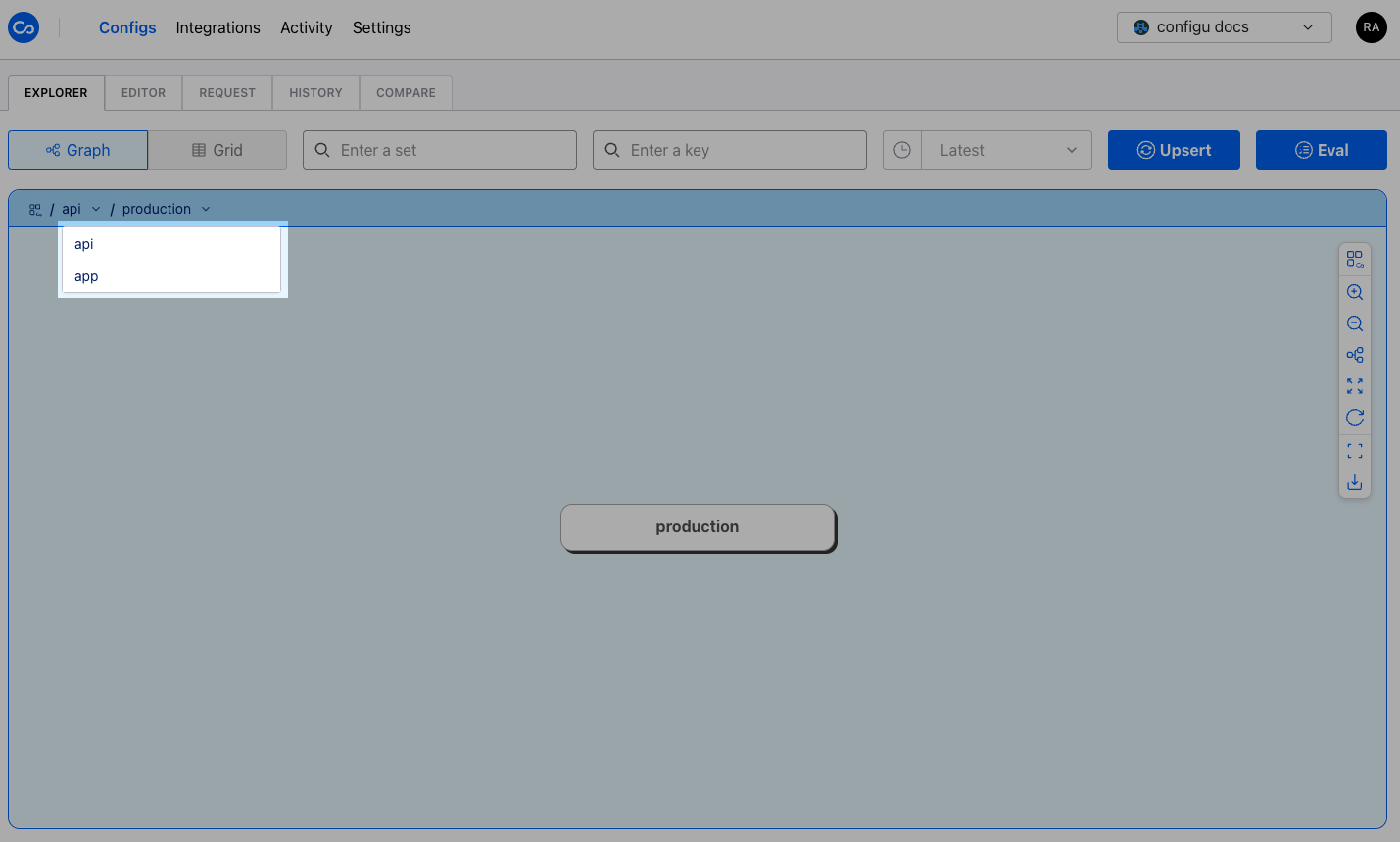
 While focused on a set, you can use the breadcrumbs to navigate back to the root set, parent set, or even a parent's sibling.
 ## Grid View
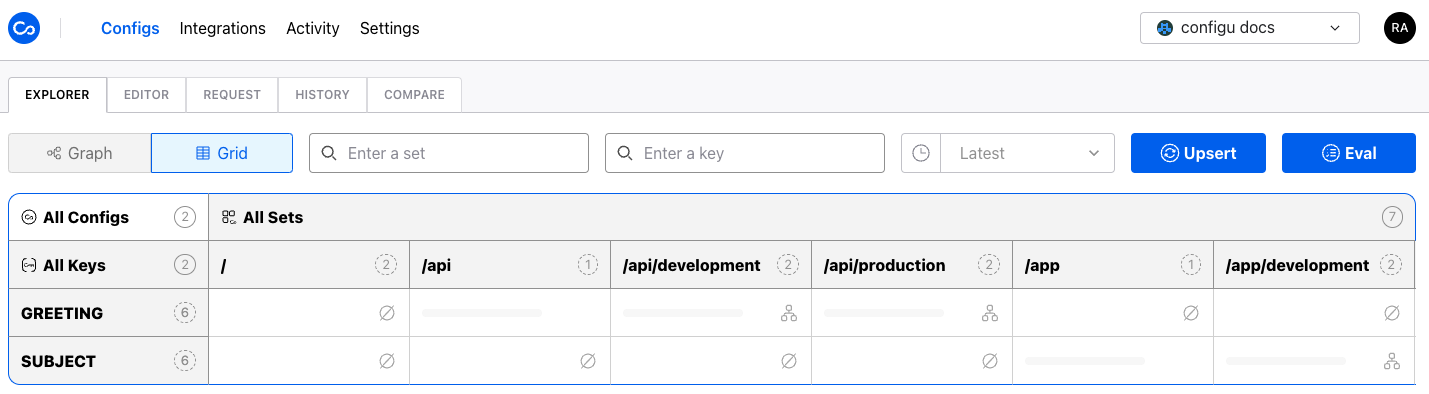
The Grid view presents your [Configs](/introduction/concepts#config) in a grid layout. By default, each column represents a ConfigSet, while each row corresponds to a ConfigKey. Within the grid, each cell displays the value of the config within its respective set. Every config cell is interactive, granting access to the config value provided you have the necessary permissions.
## Grid View
The Grid view presents your [Configs](/introduction/concepts#config) in a grid layout. By default, each column represents a ConfigSet, while each row corresponds to a ConfigKey. Within the grid, each cell displays the value of the config within its respective set. Every config cell is interactive, granting access to the config value provided you have the necessary permissions.
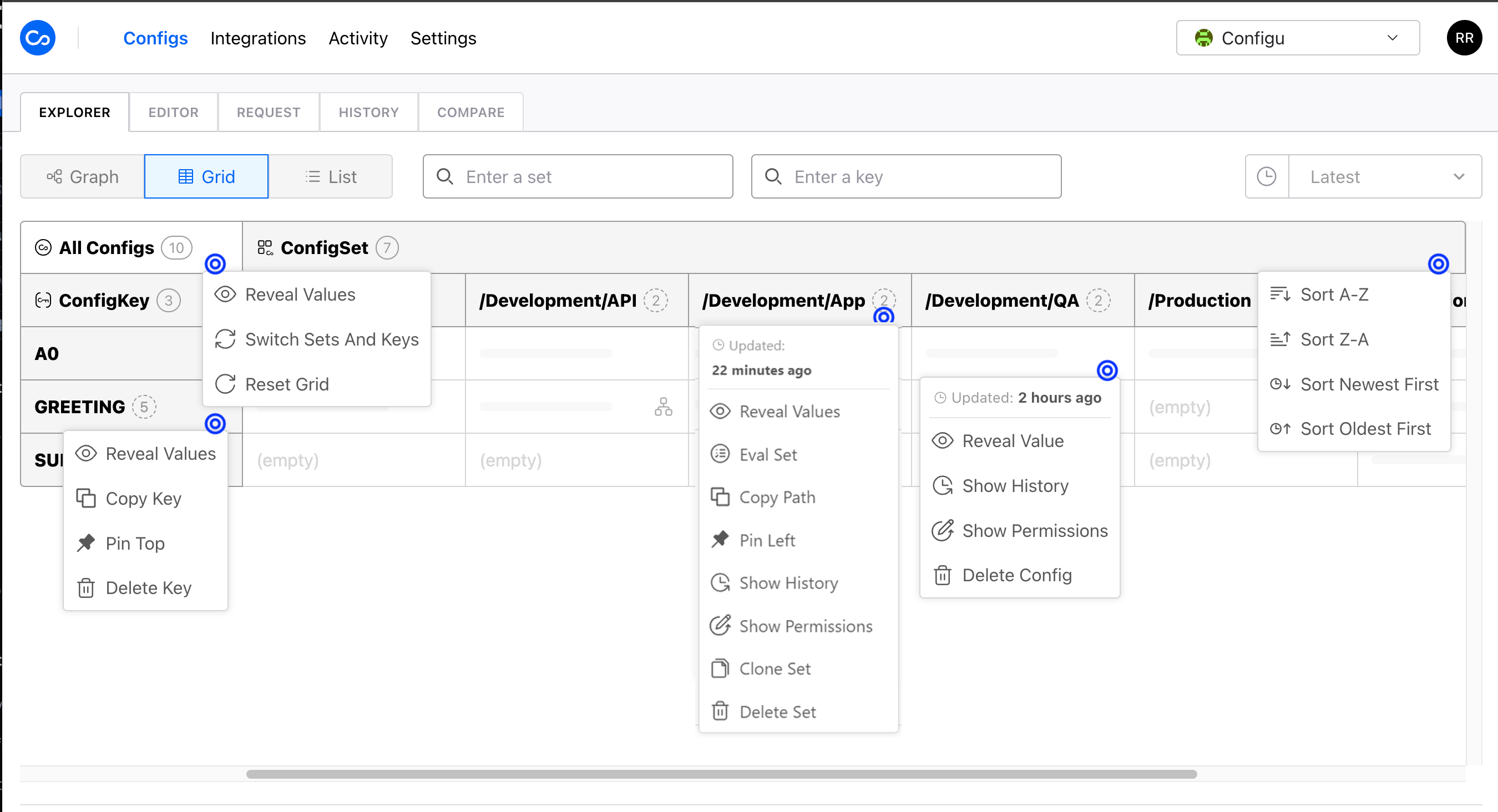
 Moreover, right-clicking on any cell within the grid reveals a context menu offering relevant actions. For instance, the `All Configs` context menu allows you to reveal all config values, transpose the grid, and revert any modifications made to the view.
Some notable actions include:
* **Pinning**: Pin the selected column or row to the left or top of the grid.
* **Sorting**: Alphabetically or by last update date for columns or rows.
* **History**: View the history of the selected config or set.
* **Create Set**: Creates an empty set.
* **Delete**: Remove the selected config or set.
* **Clone**: Duplicate the selected set.
* **Add Child Set**: Adds a child set.
* **Eval**: Evaluates the selected set.
* **Permissions**: Examine the permissions of the selected set or config.
Moreover, right-clicking on any cell within the grid reveals a context menu offering relevant actions. For instance, the `All Configs` context menu allows you to reveal all config values, transpose the grid, and revert any modifications made to the view.
Some notable actions include:
* **Pinning**: Pin the selected column or row to the left or top of the grid.
* **Sorting**: Alphabetically or by last update date for columns or rows.
* **History**: View the history of the selected config or set.
* **Create Set**: Creates an empty set.
* **Delete**: Remove the selected config or set.
* **Clone**: Duplicate the selected set.
* **Add Child Set**: Adds a child set.
* **Eval**: Evaluates the selected set.
* **Permissions**: Examine the permissions of the selected set or config.
 ## Upsert Configs Wizard
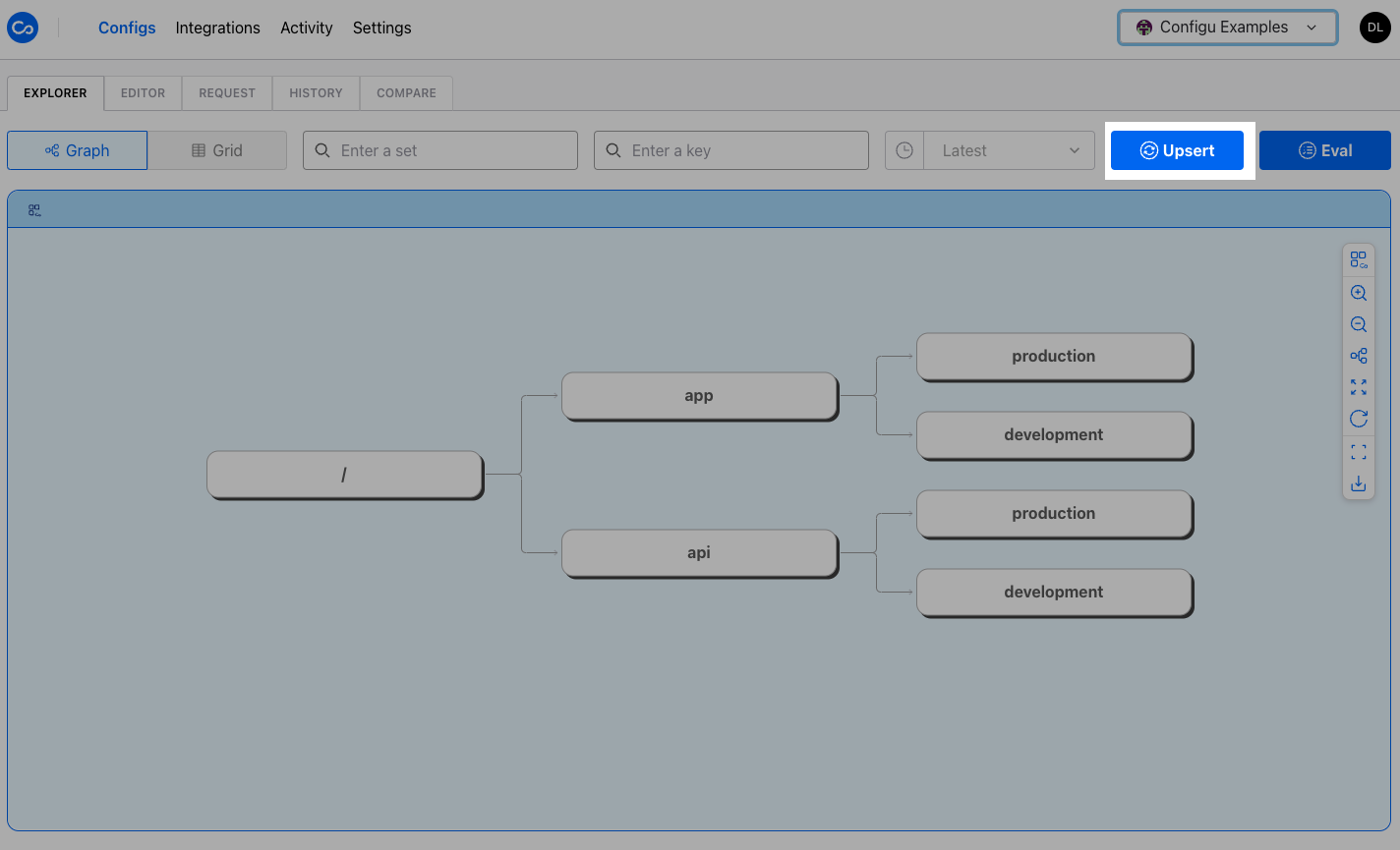
The Upsert Configs Wizard is a quick and convenient way to modify configs. You can access the wizard by clicking "Upsert" from the Graph or Grid view.
## Upsert Configs Wizard
The Upsert Configs Wizard is a quick and convenient way to modify configs. You can access the wizard by clicking "Upsert" from the Graph or Grid view.
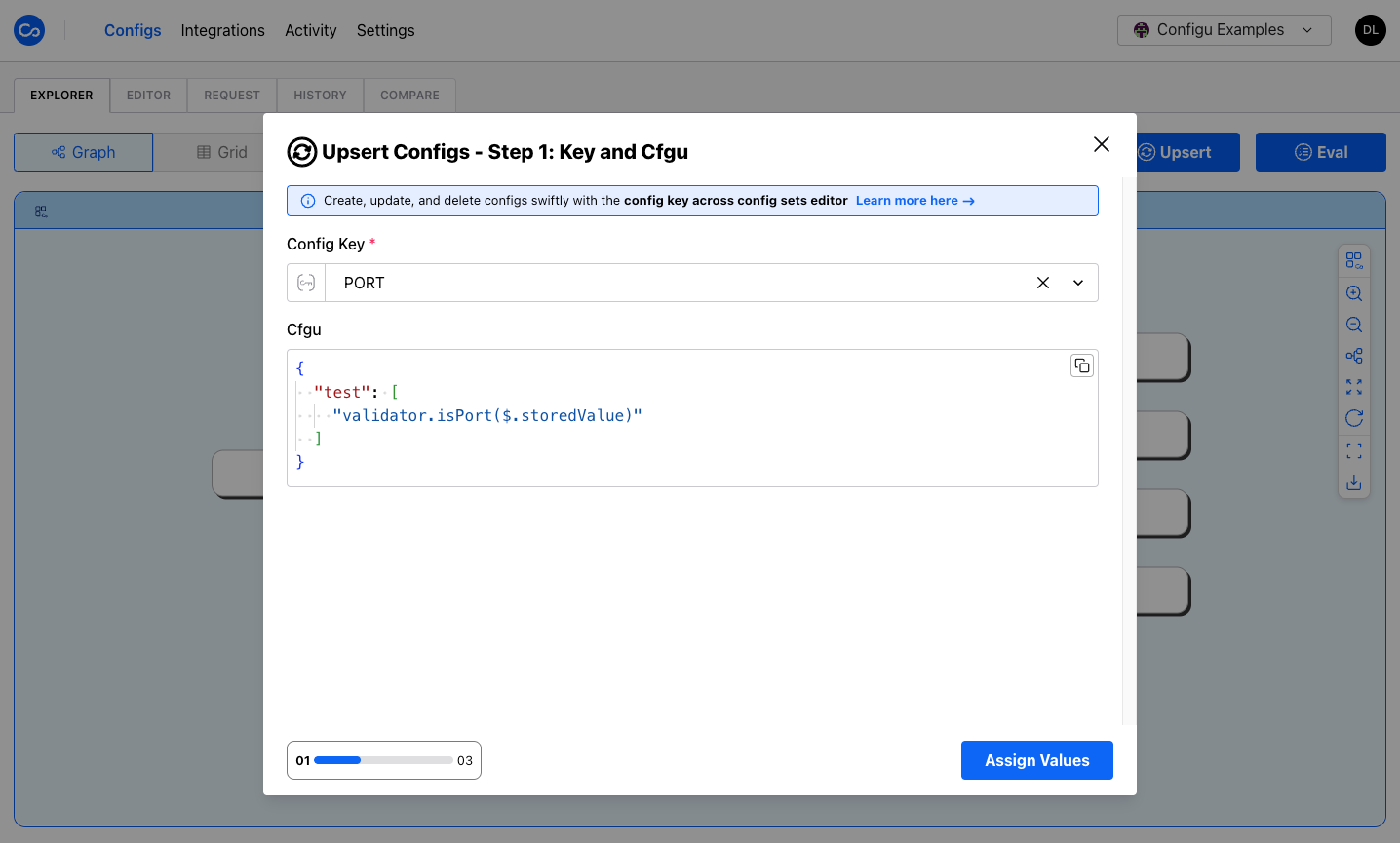
 Select or create a new key, and modify the `Cfgu` according to your needs. Click "Assign values" to proceed.
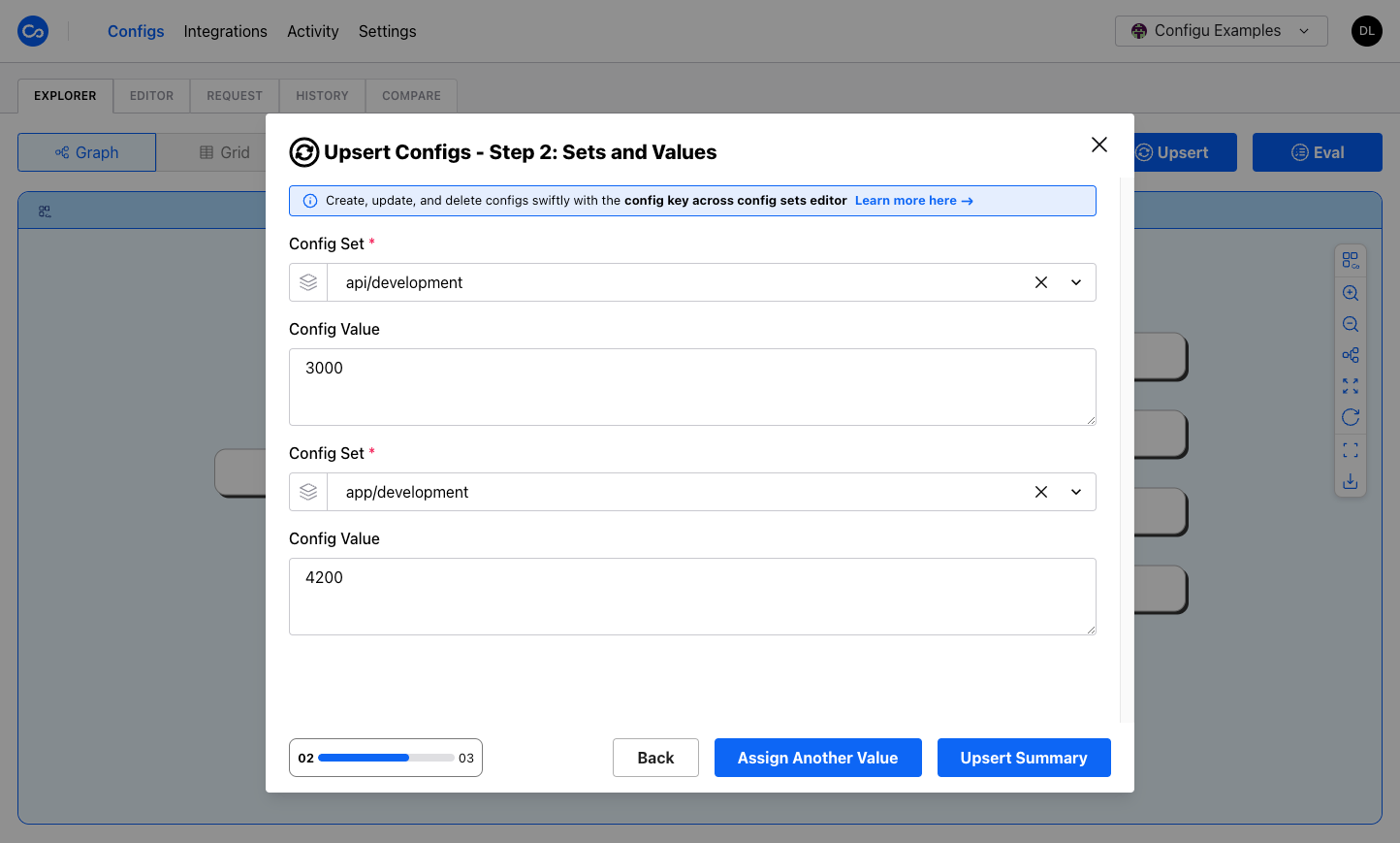
 Select or create a new set and modify the value. You can upsert to multiple sets by clicking "Assign another value" and picking other sets. Click "Upsert Summary" to proceed.
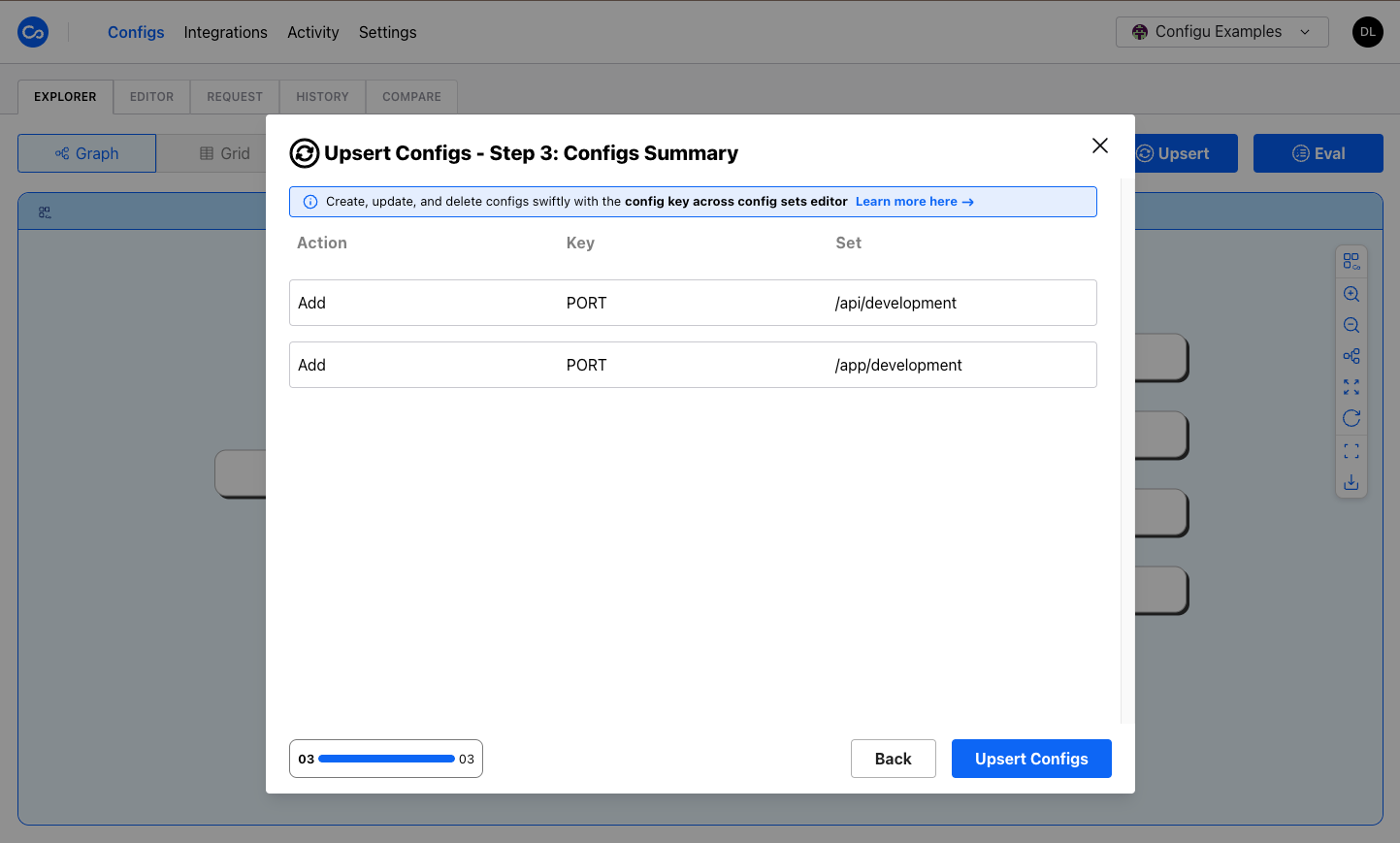
 Review the changes from the previous step and confirm the upsert. Click "Upsert Configs" to complete the process.
 ## Config Set Exporter
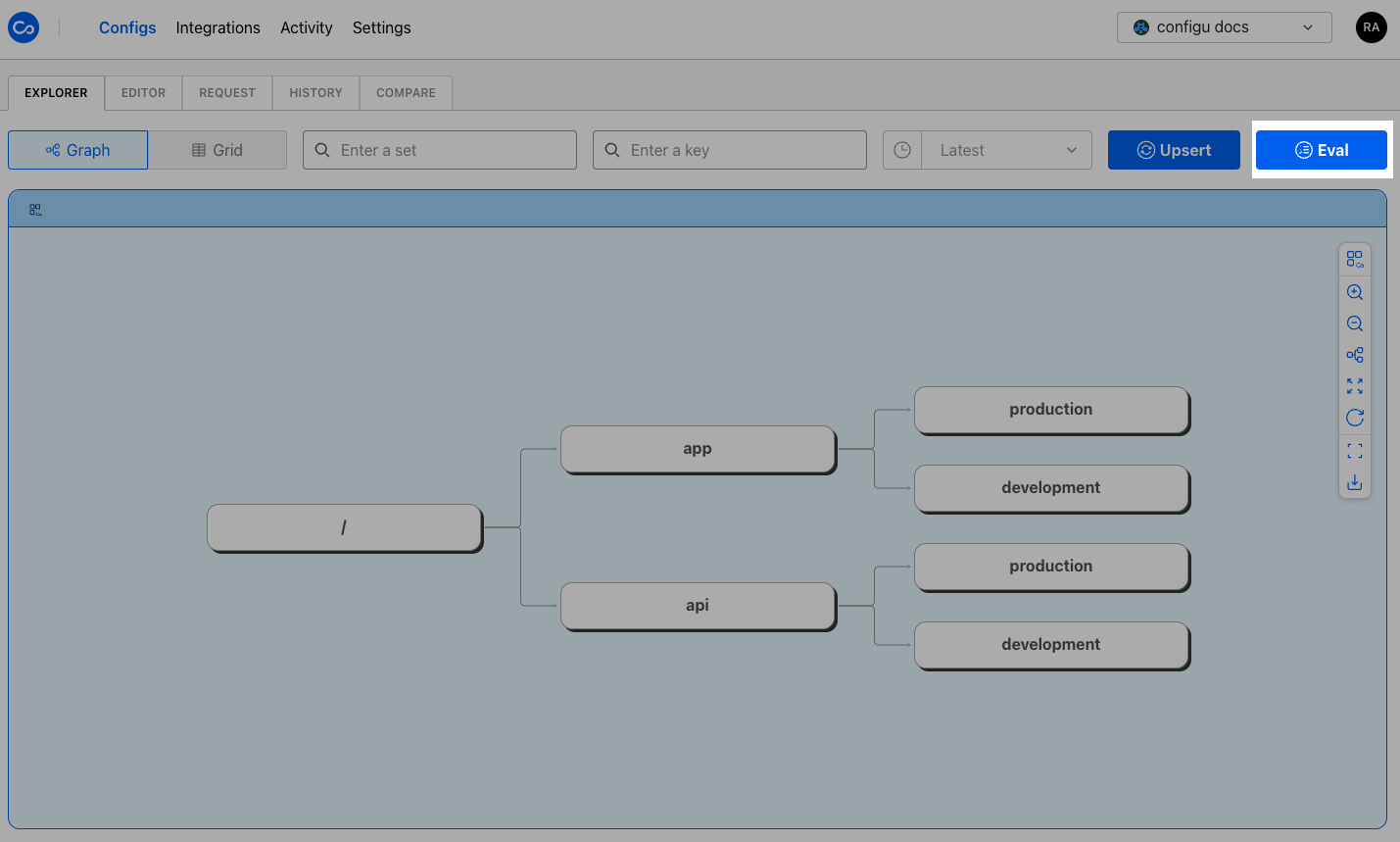
The Eval Configs modal is a quick and convenient way to evaluate configs. You can access the modal by clicking "Eval" from the Graph or Grid view or by clicking "Eval Set" from the context menu of a ConfigSet header cell or a ConfigSet node in the Graph view.
## Config Set Exporter
The Eval Configs modal is a quick and convenient way to evaluate configs. You can access the modal by clicking "Eval" from the Graph or Grid view or by clicking "Eval Set" from the context menu of a ConfigSet header cell or a ConfigSet node in the Graph view.
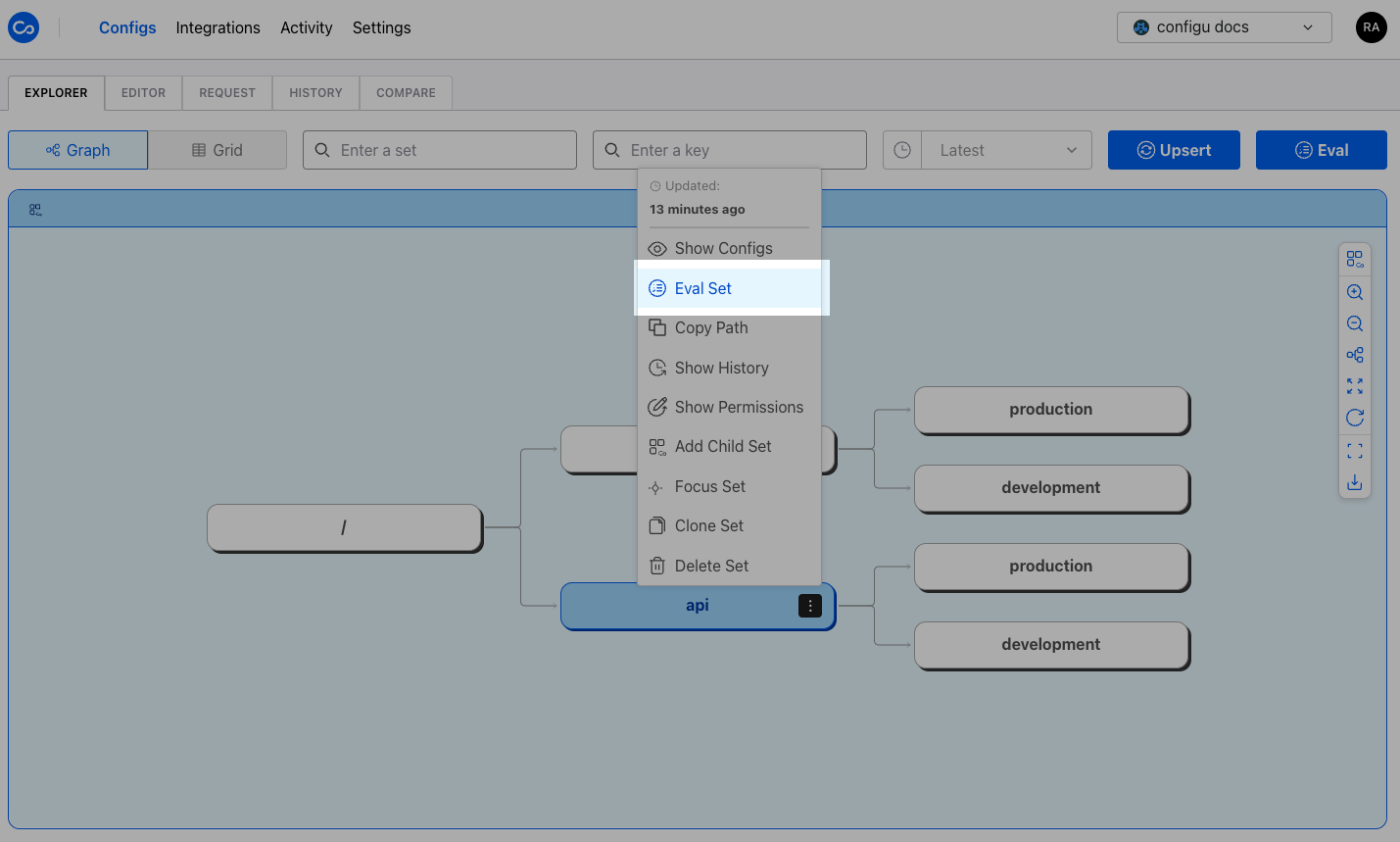
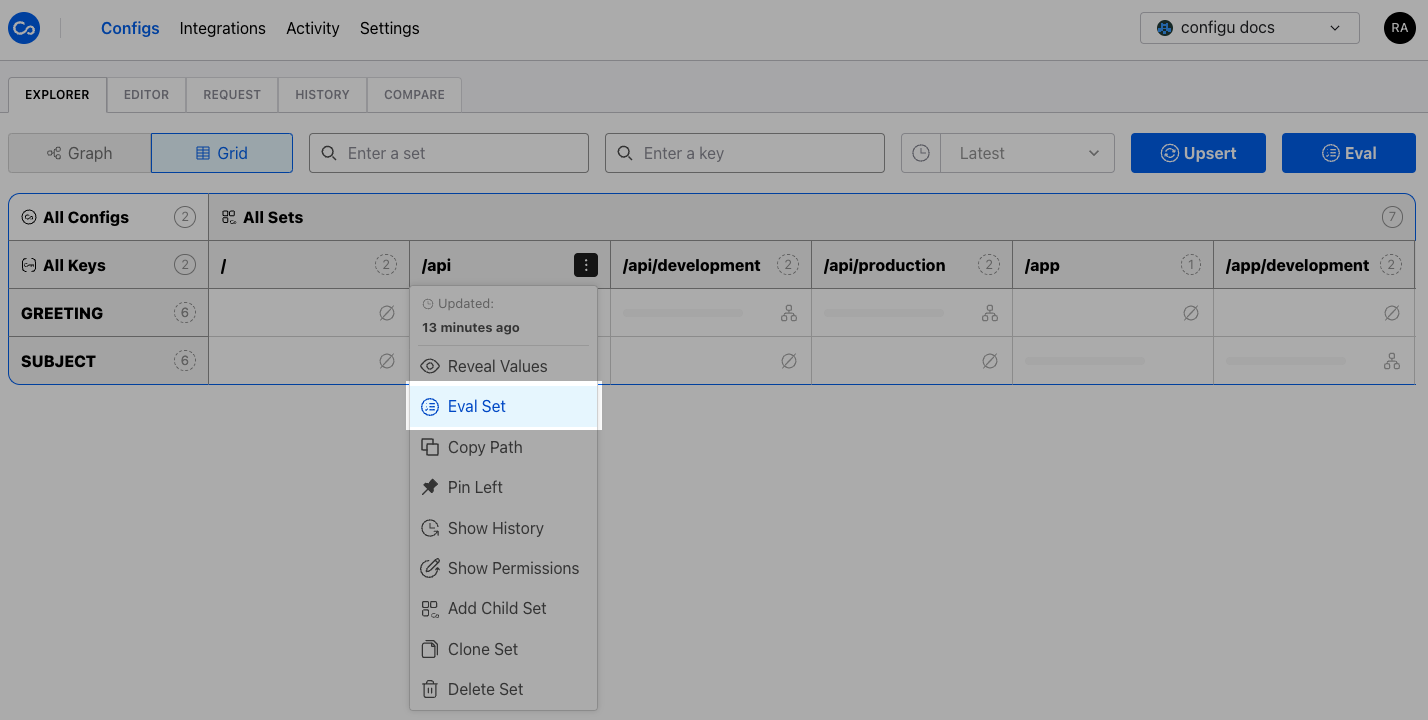 Select the set you want to evaluate. If you opened the modal via the "Eval Set" action, the set will be pre-selected. Select your preferred format and toggle whether you want to see empty config values. The formatted evaluation result is displayed in the "Config File" input which you can copy or download by clicking the respective buttons.
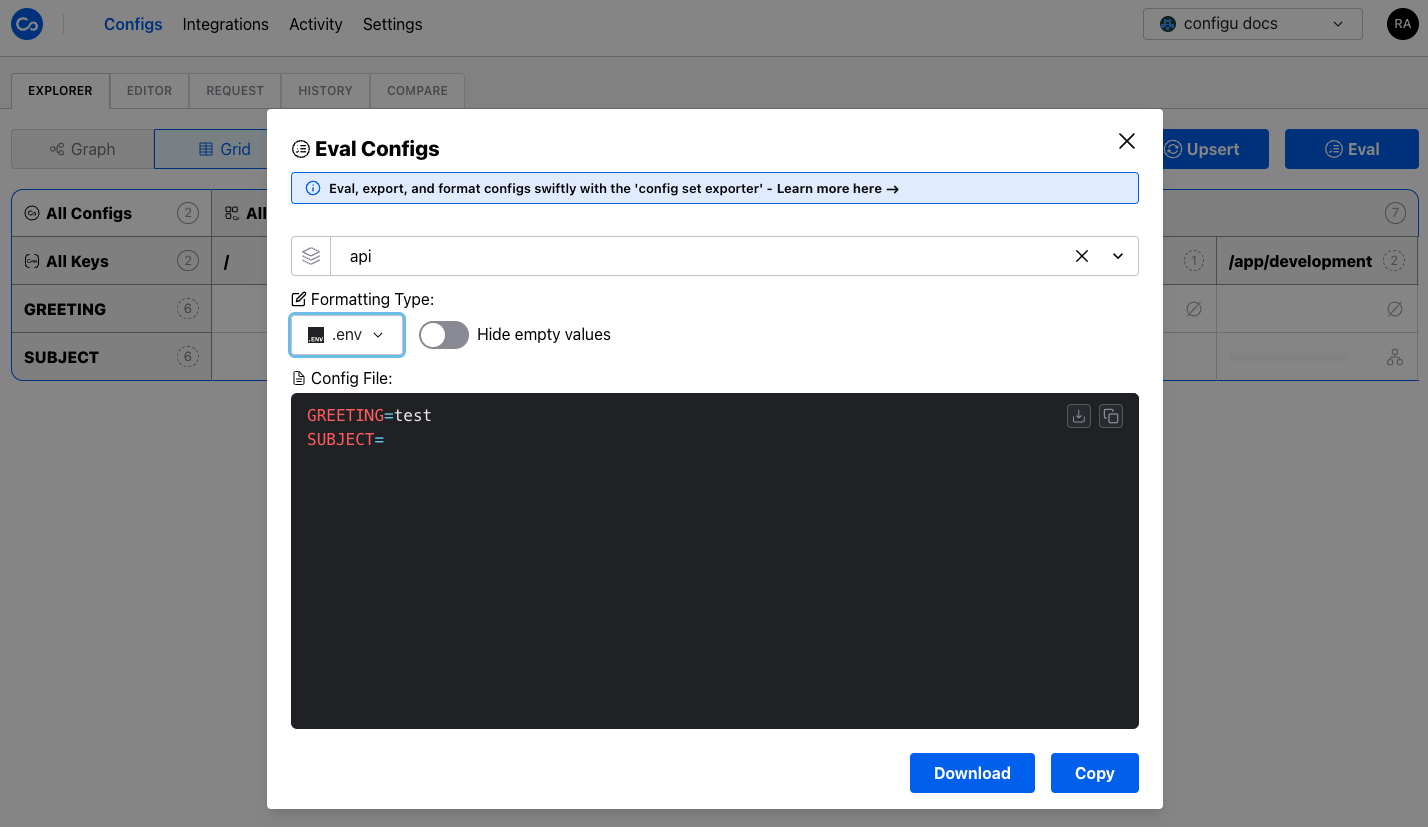 Your "Formatting Type" and "Hide empty values" selections are stored and used as defaults for future evaluations.